Most Microsoft 365 administrators regularly monitor SharePoint sites, OneDrive storage and version growth. What many may not realise is that Microsoft Designer can also consume tenant SharePoint storage through SharePoint Embedded containers that sit outside the traditional site inventory.
Key Takeaway
Microsoft Designer content created with work or school accounts can be stored in SharePoint Embedded containers that contribute towards your organisation’s SharePoint storage usage. Administrators should include Designer when reviewing SharePoint capacity, especially in tenants approaching storage limits.
For work and school accounts, Designer can use SharePoint Embedded containers inside the organisation’s Microsoft 365 tenant. These containers are not listed alongside conventional SharePoint sites under Active sites, and users do not browse them like normal OneDrive folders.
That matters because administrators could be monitoring SharePoint sites and OneDrive accounts while overlooking storage associated with Microsoft-owned applications.
If your tenant has plenty of available capacity, this is primarily something to monitor. If SharePoint storage is already under pressure, it deserves a closer look.
Where Microsoft Designer content is stored
SharePoint Embedded is an API-only document and file storage platform built on Microsoft 365. Applications provide the user experience, while SharePoint Embedded provides the underlying storage, security and compliance services.
Microsoft identified Designer as one of the applications powered by SharePoint Embedded when the platform entered public preview in November 2023.
Microsoft also publishes the following owning application ID for Designer:
Microsoft Designer
5e2795e3-ce8c-4cfb-b302-35fe5cd01597
This ID allows administrators to distinguish Designer containers from other embedded workloads, including Microsoft Loop, Outlook Newsletters and declarative agents.
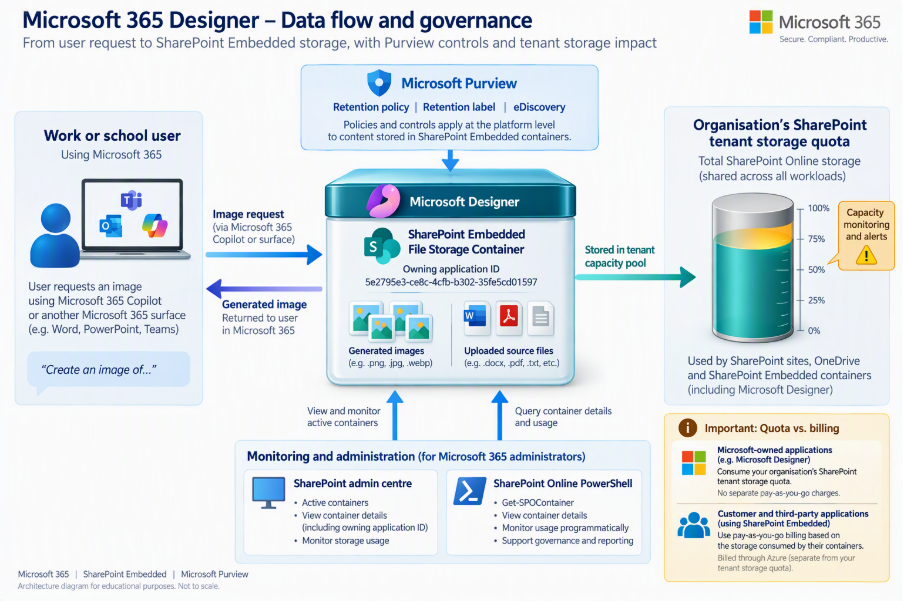
Microsoft’s current PowerShell documentation confirms the Designer application ID and supports filtering containers by owning application.
Why this matters for SharePoint capacity
There is an important distinction between Microsoft-owned applications and custom applications built on SharePoint Embedded.
The SharePoint Embedded developer platform can use Azure-based pay-as-you-go billing. Microsoft-owned applications do not necessarily follow that same commercial model.
Microsoft guidance has associated storage used by Microsoft applications such as Loop and Designer with the organisation’s existing SharePoint capacity. Administrators should therefore include Designer containers when assessing their overall SharePoint storage exposure.
This does not mean Designer will become a major storage problem in every tenant. Its significance depends on:
- How widely Designer is used
- The size and volume of generated or uploaded content
- The tenant’s remaining SharePoint capacity
- The rate at which the containers are growing
- The organisation’s retention requirements
The sensible response is measurement, not panic.
Designer and OneDrive are not the same storage story
Microsoft’s consumer Designer documentation refers to personal Microsoft storage and states that personal images uploaded to Designer are stored in OneDrive.
That should not automatically be applied to Microsoft 365 work and school accounts.
Personal Microsoft accounts and organisational Entra ID accounts use different identity and storage models. Microsoft’s enterprise documentation places Designer within the SharePoint Embedded architecture, while its consumer documentation describes OneDrive storage for personal uploads.
I could not find a definitive Microsoft announcement stating that all enterprise Designer content was migrated from OneDrive to SharePoint Embedded. It would therefore be inaccurate to claim that Microsoft simply moved every organisation’s existing Designer content from one platform to the other.
The supported conclusion is narrower: Designer is a Microsoft-owned SharePoint Embedded application, and administrators can now discover and manage its containers through SharePoint administration tools.
Find Designer containers in the SharePoint admin centre
Microsoft now provides a dedicated management experience for SharePoint Embedded containers.
You need either the SharePoint Embedded Administrator or Global Administrator role. Microsoft recommends using the dedicated SharePoint Embedded Administrator role where possible because it provides access to embedded container management without exposing the normal SharePoint Active sites pages.
To review Designer containers:
- Open the SharePoint admin centre.
- Expand SharePoint Embedded in the left-hand navigation.
- Select Active containers.
- Filter Application name to Microsoft Designer.
- Sort the results by Storage.
The Active containers page can show:
- Container name
- Application name
- Storage used
- Ownership type
- Principal owner
- Owner count
- Sensitivity label
- Creation date
Microsoft specifically positions this page for container inventory, compliance reviews and lifecycle decisions.
Check the total impact with PowerShell
PowerShell is useful when you need a repeatable inventory or want to compare storage growth over time.
Install or update the latest SharePoint Online Management Shell, then connect to the tenant administration endpoint:
Install-Module Microsoft.Online.SharePoint.PowerShell -Scope CurrentUser
Update-Module Microsoft.Online.SharePoint.PowerShell
Import-Module Microsoft.Online.SharePoint.PowerShell

Connect-SPOService -Url "https://<tenant>-admin.sharepoint.com"
You can then list Designer containers using the published application ID:
Get-SPOContainer `
    -OwningApplicationId "5e2795e3-ce8c-4cfb-b302-35fe5cd01597" `
    -SortByStorage Descending
The current Get-SPOContainer documentation confirms support for:
- Filtering by owning application ID
- Sorting by storage
- Paging through results
- Retrieving detailed information for an individual container
It does not document a -Detailed parameter. To obtain the full properties for a container, use its container ID with the -Identity parameter:
Get-SPOContainer -Identity "<ContainerId>"Microsoft advises using the latest SharePoint Online Management Shell and requires the SharePoint Embedded Administrator or Global Administrator role for these administrative commands.
For larger tenants, make sure your reporting script handles paging rather than assuming the first response contains every container.
Establish a storage baseline
A single storage figure only tells you what is happening today. A recurring baseline tells you whether Designer storage is stable or growing.
At a minimum, record:
- Container ID
- Container name
- Principal owner
- Creation date
- Storage used in bytes
- Storage used in GB
- Date and time captured
Retain each export rather than overwriting the previous one. Comparing successive snapshots will show both overall Designer growth and the containers contributing most to that growth.
Also review the tenant-wide SharePoint Storage report:
Microsoft 365 admin centre → Reports → Usage → SharePoint → Storage
Microsoft states that this report refreshes every 48 to 72 hours. It shows total storage usage, available quota and the tenant’s storage growth trend. Banner notifications appear when SharePoint usage exceeds 80% of the available quota.
The 80% notification is a useful operational trigger, but it should not be treated as a universal governance threshold.
Do not delete Designer containers without understanding the impact
SharePoint Embedded supports container lifecycle operations including soft deletion, restoration and permanent deletion.
The relevant PowerShell commands include:
# Soft-delete a container
Remove-SPOContainer -Identity "<ContainerId>"

# List deleted containers
Get-SPODeletedContainer

# Restore a deleted container
Restore-SPODeletedContainer -Identity "<ContainerId>"

# Permanently delete a deleted container
Remove-SPODeletedContainer -Identity "<ContainerId>"
However, Microsoft does not clearly document the Designer-specific user experience after its container is deleted.
There is no supported guarantee that:
- Designer will recreate the container
- Existing projects will remain available
- References to stored content will continue to work
- Deleting the container will immediately release all associated storage
Do not use bulk container deletion as a quick storage-remediation method.
Before deleting a Designer container, confirm its ownership, review the likely user impact, check applicable retention controls and test the process using non-critical content.
Microsoft’s own administration guidance warns administrators to understand the business impact before deleting or permanently deleting any SharePoint Embedded container.
Retention can delay storage recovery
SharePoint Embedded content can be governed through Microsoft Purview.
Supported capabilities include:
- Audit
- eDiscovery
- Data Lifecycle Management
- Data Loss Prevention
- Retention policies
- Retention labels
Microsoft confirms that files stored in SharePoint Embedded can be retained through retention policies or retention labels. It also explains that some compliance scenarios depend on the owning application providing the user-facing experience because SharePoint Embedded has no native end-user interface.
This distinction is important for Designer. The underlying container can be included in Microsoft 365 compliance controls, but I could not find Microsoft documentation confirming a Designer-specific interface for users to manually view or manage retention labels.
Retention can also affect storage recovery. If content must be preserved, deleting it from the application or container may not result in immediate physical deletion from Microsoft 365.
Admins should review retention policies, labels, eDiscovery holds and legal requirements before estimating how much capacity a deletion will release.
Should Microsoft 365 admins act now?
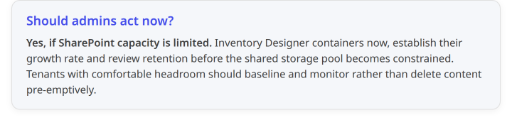
Yes, but the action should be proportionate to the tenant’s current storage position.
If your tenant has comfortable headroom
- Identify the Designer containers.
- Capture an initial storage baseline.
- Add Designer to the SharePoint capacity forecast.
- Review growth monthly.
- Investigate if storage or container growth accelerates.
If SharePoint capacity is limited
- Inventory Designer containers now.
- Identify the largest containers and their owners.
- Capture regular storage snapshots until the growth pattern is understood.
- Compare Designer growth with total available SharePoint capacity.
- Review retention before expecting deletion to release storage.
- Consider Designer alongside file versions, inactive sites, deleted content and other embedded workloads.
Designer may not be the largest consumer in the tenant, but an unmonitored workload can still reduce the time available to address wider SharePoint storage pressure.
My view as a Microsoft 365 administrator
Designer storage is not automatically a crisis, and the presence of SharePoint Embedded containers does not mean Microsoft has done anything improper.
The real issue is administrative visibility.
Most SharePoint capacity reviews naturally start with Active sites, large document libraries, OneDrive usage and version history. SharePoint Embedded introduces another storage layer that sits outside that familiar site inventory.
The practical response is straightforward:
- Find the containers.
- Measure their current storage.
- Establish the growth rate.
- Confirm ownership and retention.
- Avoid deletion until the user impact is understood.
For tenants with plenty of capacity, that may be all that is required. For organisations already approaching their SharePoint limit, Designer belongs in the storage conversation now.
Admin checklist
- Assign the SharePoint Embedded Administrator role where appropriate.
- Open SharePoint Embedded → Active containers.
- Filter the application name to Microsoft Designer.
- Sort containers by storage.
- Record the Designer container count and total storage.
- Retain dated PowerShell or CSV baselines.
- Review current SharePoint capacity and growth.
- Investigate the largest and fastest-growing containers.
- Confirm principal ownership before lifecycle action.
- Review Purview retention and eDiscovery requirements.
- Test deletion and restoration using non-critical content.
- Do not assume deletion will provide immediate storage recovery.
- Include embedded workloads in ongoing SharePoint capacity planning.
References
- Get-SPOContainer PowerShell reference
- Manage SharePoint Embedded containers in the SharePoint admin centre
- Manage SharePoint Embedded containers with PowerShell
- SharePoint Embedded PowerShell reference
- SharePoint Storage report
- SharePoint Embedded security and compliance controls
- SharePoint Embedded governance planning
- Retention for SharePoint and SharePoint Embedded