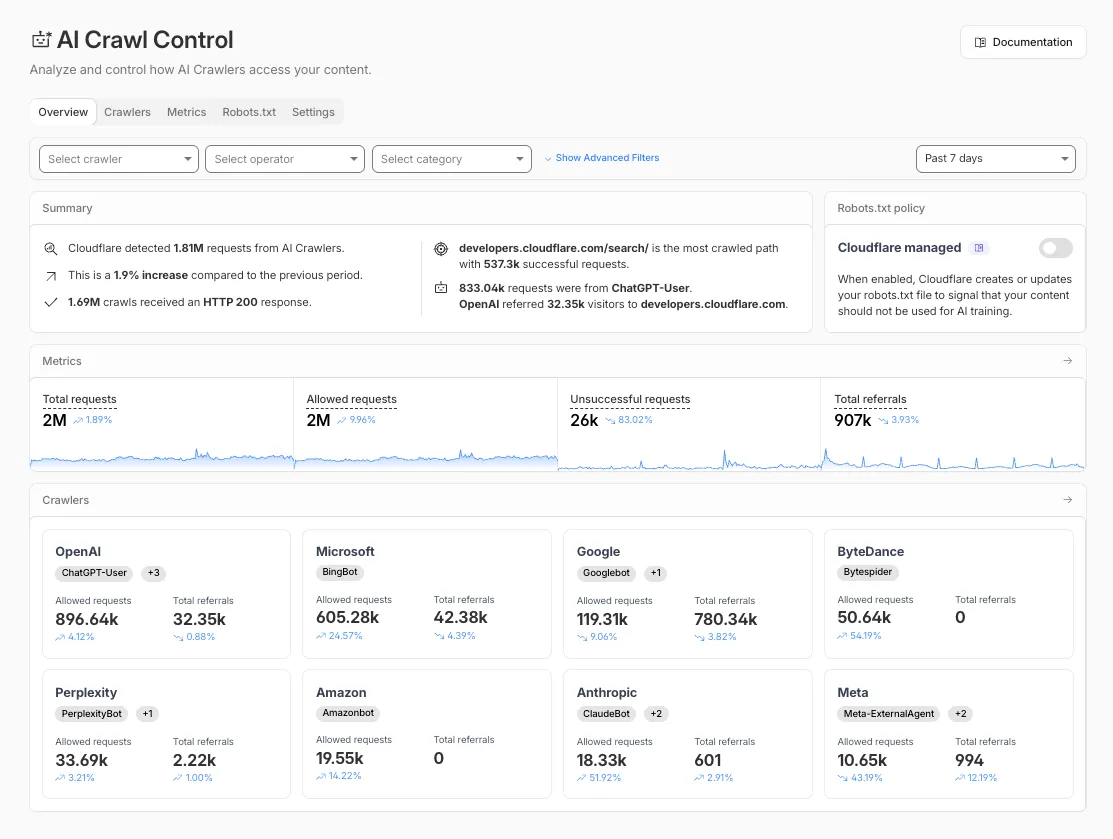
The Overview tab is now the default view in AI Crawl Control. The previous default view with controls for individual AI crawlers is available in the Crawlers tab.
What’s new
- Executive summary — Monitor total requests, volume change, most common status code, most popular path, and high-volume activity
- Operator grouping — Track crawlers by their operating companies (OpenAI, Microsoft, Google, ByteDance, Anthropic, Meta)
- Customizable filters — Filter your snapshot by date range, crawler, operator, hostname, or path
Get started
- Log in to the Cloudflare dashboard and select your account and domain.
- Go to AI Crawl Control, where the Overview tab opens by default with your activity snapshot.
- Use filters to customize your view by date range, crawler, operator, hostname, or path.
- Navigate to the Crawlers tab to manage controls for individual crawlers.
Learn more about analyzing AI traffic and managing AI crawlers.
Source: Cloudflare
Latest Posts
- Amazon ECS now supports GPU sharing with NVIDIA Multi-Process Service (MPS)

- MC1528006: Microsoft Authenticator Improves Backup and Restore Experience on Android
- MC1528011: Microsoft Teams Adds External Presenter Support to Event Group Chat
- MC1528013: SharePoint Mobile Apps Retire Server Access and Support SharePoint Online Only